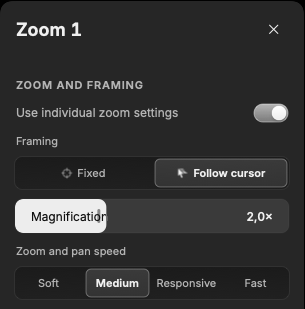
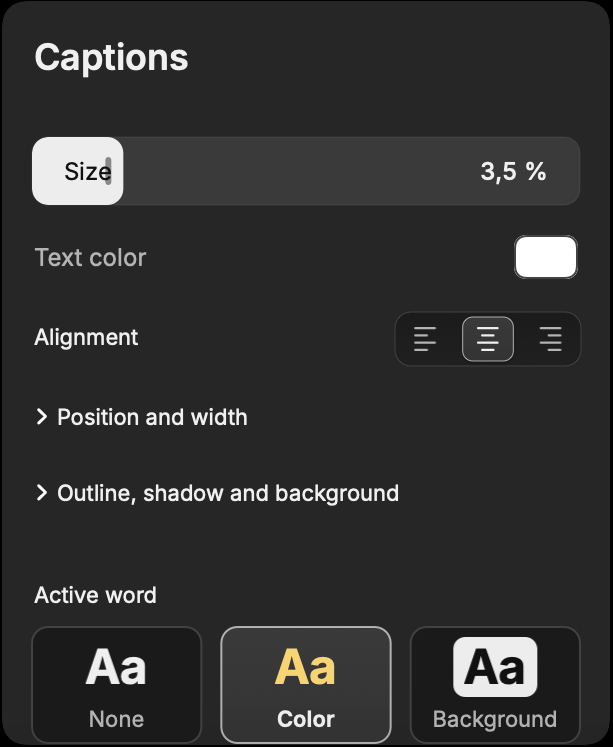
Record what you want to show.
Record your screen, a window or an area. Add camera, mic and sound from all apps or just the ones you choose.
Turn what you do on your screen into demos and tutorials worth watching. Quick to make, easy to polish.
Apple siliconExplainer videos
From your screen to a well-crafted video, without losing time along the way.
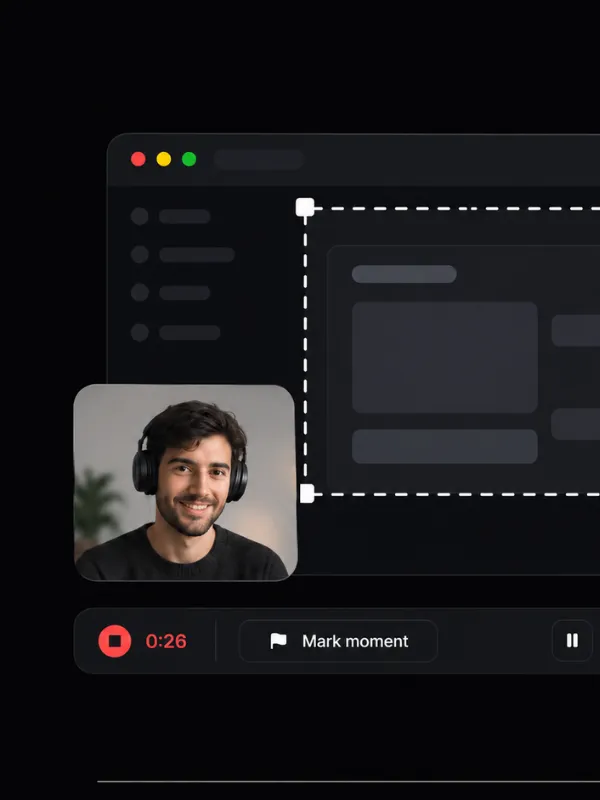
Choose your screen, a window or an area. Add your camera and voice.
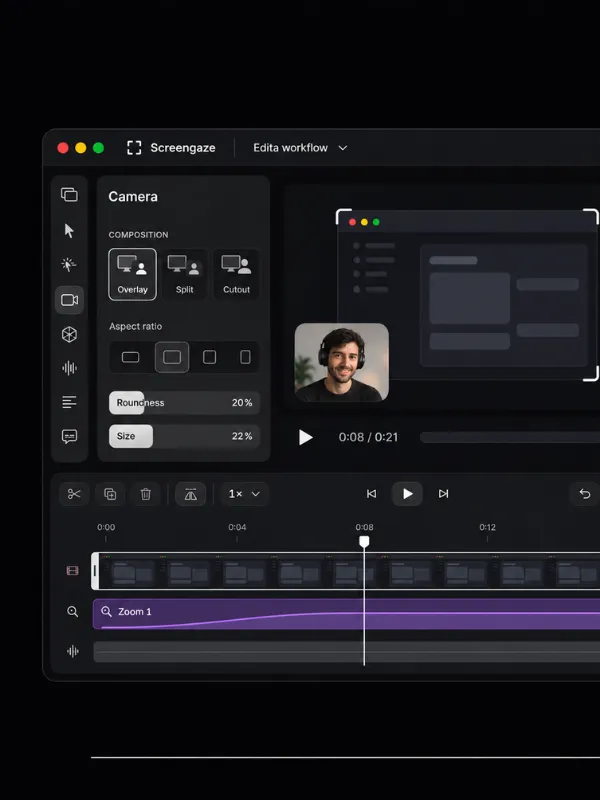
Trim what you don’t need, zoom into the details and make it your own.
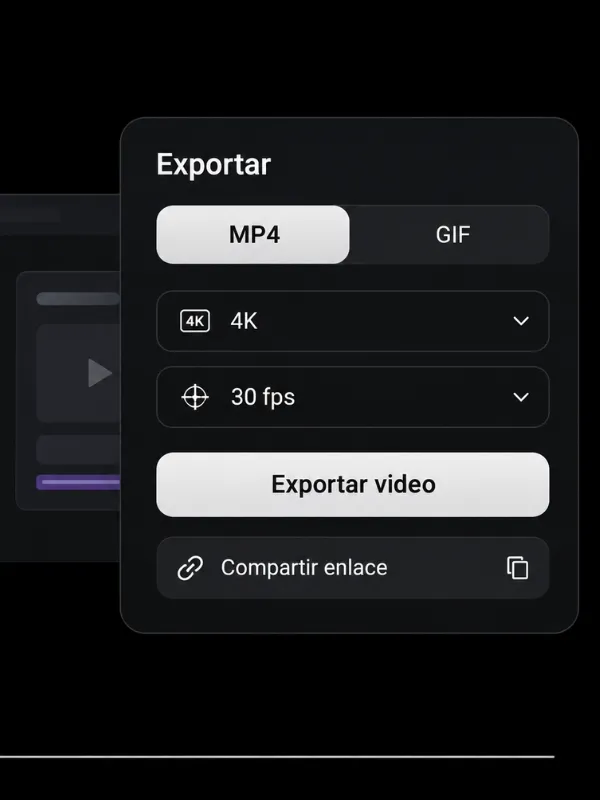
Save your video as an MP4 or GIF, ready to share.
Shape the details that make a recording your own.
Record your screen, a window or an area. Add camera, mic and sound from all apps or just the ones you choose.
Overlay your camera, remove its background or split the screen. In portrait, the camera and screen stack one above the other.
Screengaze automatically zooms in on your clicks. Let the frame follow your cursor or keep it focused on a detail.
Transcribe your voice with local AI and create captions for your Reels. Make words appear or light up as you say them.
Select a phrase in the transcript to cut that part of the video. Review detected pauses and filler words and choose which ones to remove.
Choose a gradient, a color or an image and adjust the space around your recording.
Highlight what you’re explaining or blur details you’d rather keep out of view.
With Google Drive connected, one click on “Create link” prepares the MP4 and uploads it to your account. You choose who can watch it.
Your originals stay on your computer. The video you share never passes through our servers.
How we protect your privacyExplore the version for your system, or sign up for updates on what’s coming next.
Apple Silicon
Windows · No confirmed launch date
Linux · No confirmed launch date
Your ideas don’t need a monthly fee. Record and edit for free; when you’re ready for the next step, make it a one-time purchase.
No subscriptions. No recurring payments.
Applicable taxes included.
Get the launch price while it lasts. The licence will soon go up to €49.
Still have a question? Get in touch
You can record, edit and export in the same app. Screengaze creates zooms from your clicks, lets you trim the video by selecting words in the transcript, and turns that transcript into captions when you need them.
Record and edit from the first launch without signing up. Free mode lets you export MP4s or GIFs up to 3 minutes long at a maximum of 720p, with a watermark.
A one-time payment, including applicable taxes, lets you export watermark-free MP4s at up to 4K and beyond the free mode’s 3-minute limit. The licence covers two devices and includes all future app improvements.See the personal licence
Yes. From the same project, you can export a landscape MP4 (16:9) for YouTube and a portrait MP4 (9:16) for Reels or Shorts. Check the framing of each version before exporting.
Your original files and projects stay on the computer where you record and edit. If you choose to share via Google Drive, Screengaze sends the finished MP4 directly to your Drive, and you decide who can view it.
Screengaze is coming soon to Windows. The current version is for Apple Silicon Macs, with Linux planned for later.Get Windows updatesSee all platforms